Restricting a File to a Pack Using Group ID
A tutorial by Amethyst Lilac
In general, most of us want our mods to be available to as many people as possible. Sometimes a mod will require a pack and it’s unavoidable. If you’re making a mod for aliens, you’re going to need Get to Work, and there’s really no way around that. But a lot of the time, we want to add pack content to our mods while not making them require that pack.
Sometimes it’s fine as is. If you’re going to add something extra if a Sim has the Macabre trait, you can generally add a test for the Sim having that trait and that takes care of that. The Sim can’t pass that test unless they have the trait, so the thing never happens if the player doesn’t own the trait and so no errors happen — in general, although there may be exceptions where this can’t be done. Note that a Test Set Reference does not work for this.
Other times, things aren’t what we call Pack Safe as a whole. If a player tries to use your mod without having the pack required, they will get errors. One of the ways around that is to use the Group ID of the pack that the thing comes from.
For this tutorial, I’ll go over how to see when something isn’t pack safe using Lot 51’s Tdesc Builder, using a Want/Whim as an example, and how to restrict it to the pack it’s from using either Tdesc Builder or Sims 4 Studio.
When To Pack Restrict
Section titled “When To Pack Restrict”For this tutorial, I’ll start from an aspiration. I picked a random one from the game and opened it in Tdesc Builder.
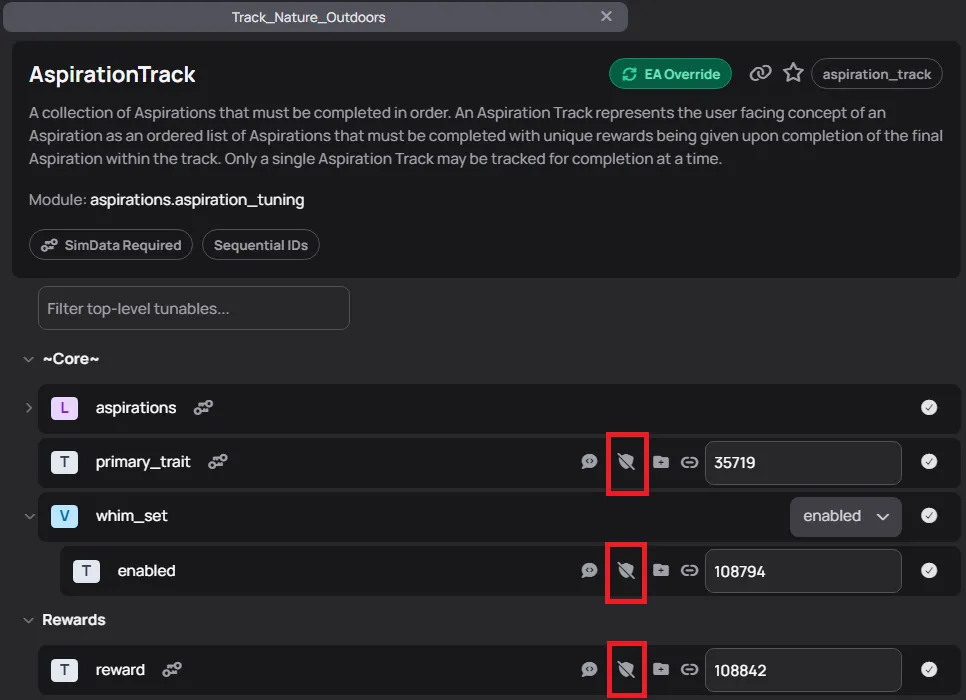
These crossed out shields indicate that something is NOT pack safe. If you use something that requires a pack the player doesn’t have, then the player will get errors sooner or later. It may be immediately on loading in with your mod installed, or it may be when they try to use that feature, but it will happen. In this case, if you try to use a Primary Trait, a Whim Set, or a Reward from a pack that your mod isn’t intended to require, then you will have unintentional requirements, and will likely be confused as to why your mod is ‘broken’ for some people but not others.
So you can’t use a Whim Set from a pack that isn’t required. There’s no way to make that work. You’d need to make the entire mod require that pack, or not have a Whim Set, since they’re not required for anything that I know of. Some things are, and then you’d have to choose between adding a requirement and picking something from Base Game or a pack you already require.
That’s not what we’re here for though. Right click the Whim Set and choose Open Reference. It will open in a new tab of Tdesc Builder.
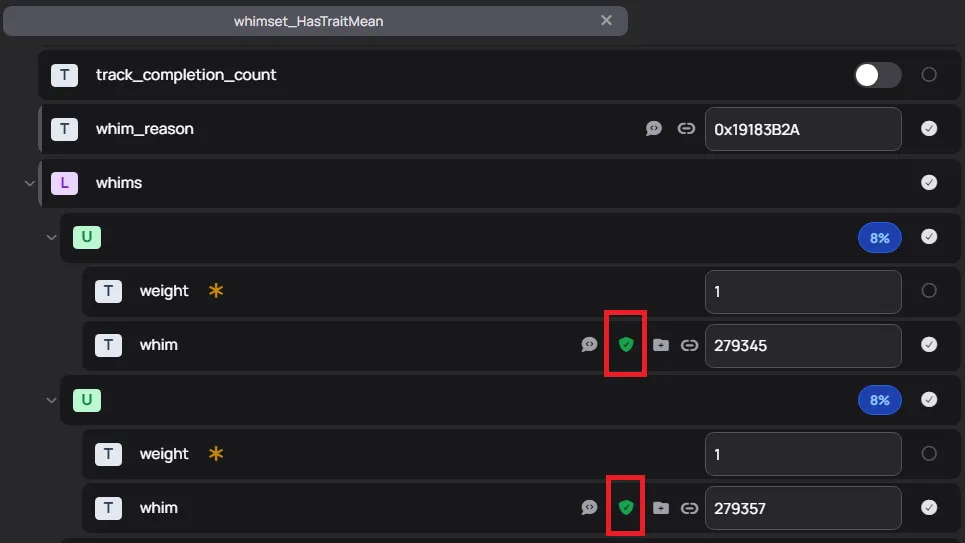
If we look at a Whim Set, we see that the Whims themselves are pack safe, as indicated by the green shields. You could, if you want, put a bunch of Whims in a Whim Set, all of them requiring a pack your mod doesn’t require, and the player wouldn’t see any of those Whims if they don’t have the packs. There would be no Whims for them, but also no errors.
Still not what we’re looking for, but getting closer. Right click the Whim and choose Open Reference.
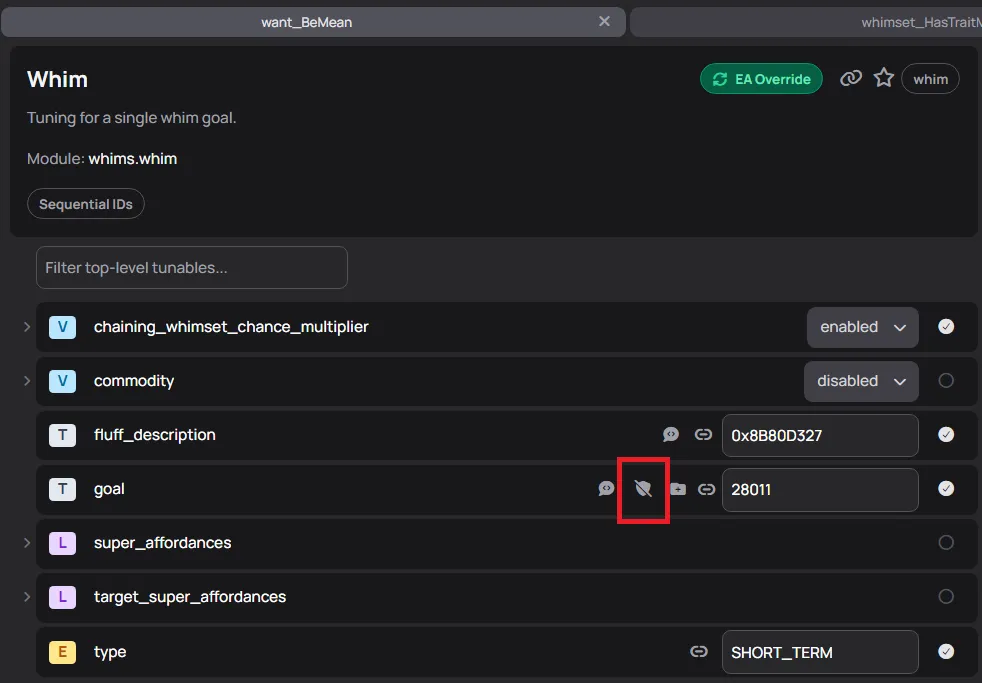
When we look at the Whim, we see that the Goal is NOT pack safe. When a Sim randomly rolls this Whim, there will be an error if the player doesn’t have the pack required. If, for example, you want your Sim to eat popcorn to fulfill this want, the player would need to have the Movie Hangout Stuff Pack installed.
So we need the player to never get this far if we don’t want that to be a requirement of the mod, which means that we need to go to the last pack safe step, which is the Whim, and make it require the Movie Hangout Stuff Pack.
Pack Restricting with Group ID
Section titled “Pack Restricting with Group ID”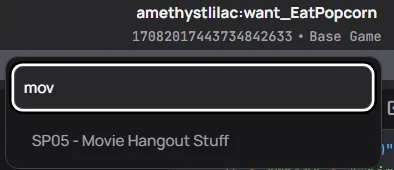
In Tdesc Builder, it’s a simple matter of selecting the pack at the top, below the file name. Click where it says either the name of the pack or Base Game. A drop-down list will open. You can scroll to the pack you need or start typing the pack name or number. Select the pack, and then when you’re finished with your tuning, export it as a loose file (make sure to also export SimData if needed) or as a package. If you already had this file in a package, make sure to delete it, because this version won’t replace the old one since it has a new group ID.
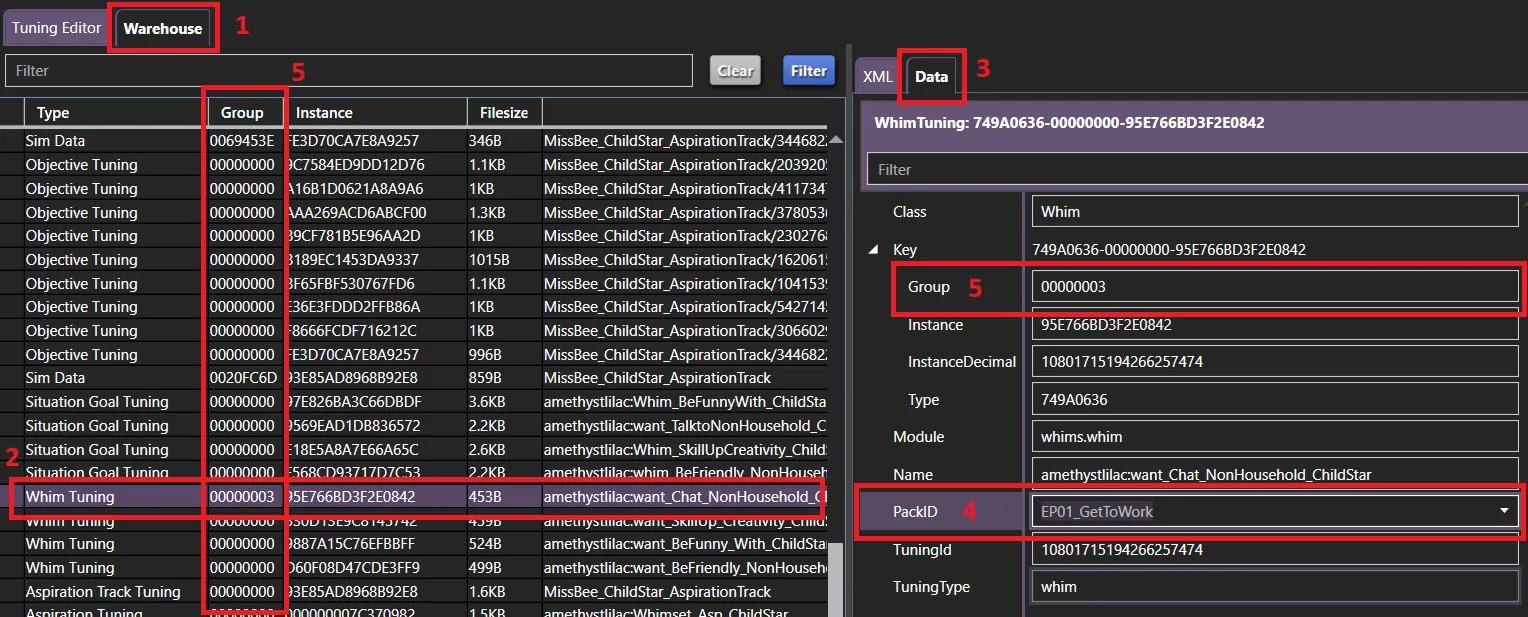
In Sims 4 Studio, it’s still simple once you know where to look. If you already have your file in a package and don’t need to make any more changes, it’s probably easier to just change it here.
First make sure you’re in the Warehouse tab at the top.
Then find the file that you need to restrict by pack in the list of files.
Then go to the Data tab for that file.
There’s a drop-down list where you can select the required pack. This will change the number in the Group field in the Data tab and in the column where all the files are listed. Make sure to save the package after changing the pack.
If your version of Sims 4 Studio doesn’t have a drop-down list, update it. You can also find the Group IDs listed in Pack Data if you prefer to change the number manually — in that case, the number should be 8 letters/numbers, with all zeroes before the one or two characters that represent the pack.
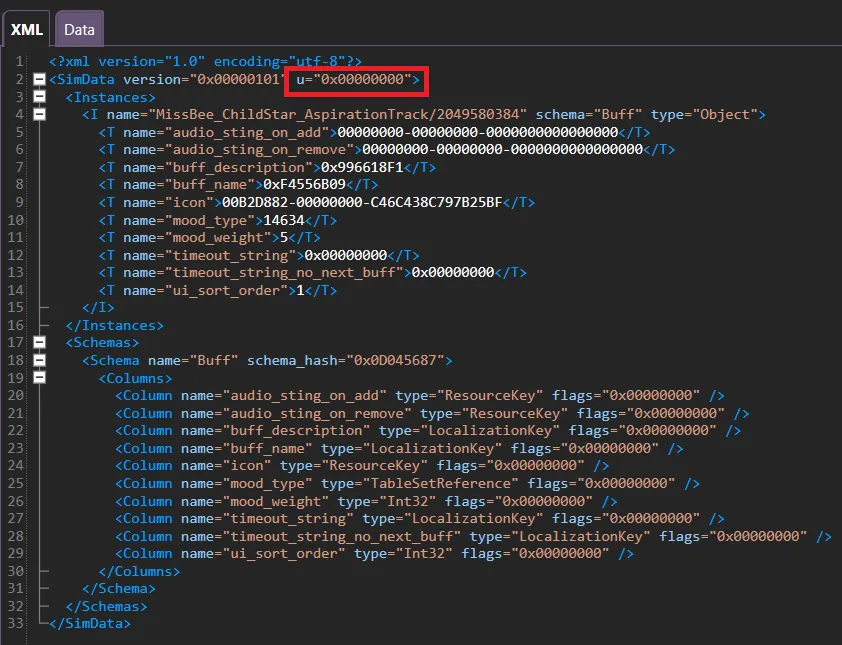
SimData is special, as it is in all things. If your file that you need to restrict by pack has SimData, do NOT change the Group ID of the SimData, because that’s the SimData Group ID and doesn’t have any connection to any pack. Instead change the ‘u’ number to match the Group ID of the tuning file it’s paired with. It should be 0x[GroupID] — 0x00000000 for Base Game, 0x00000003 for Get to Work, etc. Again, remember to save your package after making changes.
When NOT to Change the Group ID
Section titled “When NOT to Change the Group ID”Some files should not have their Group ID changed. Custom Content files generally shouldn’t. SimData never should.
If the Group ID doesn’t follow the format of 000000XX, then don’t change it. Use another method to add a pack requirement. How to add a pack requirement for SimData is mentioned above. Pack requirements are built into Warehouse for Custom Content along with a cheat in a menu at the top to add a DLC pack requirement.
Originally written by Amethyst Lilac for this site.